
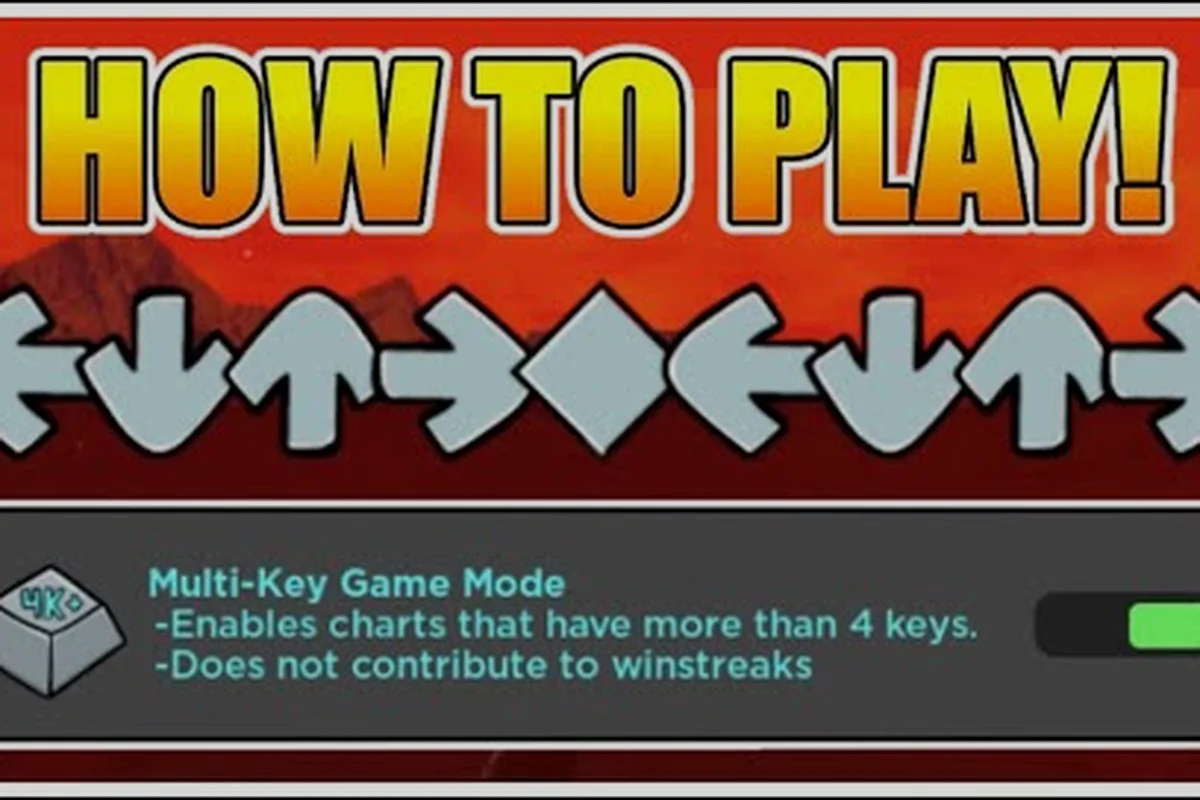
Tuning your Funky Friday note speed is the single fastest way to clean up missed notes, bump your accuracy, and stop feeling like the charts are outrunning your fingers. A higher speed spaces arrows out so your eyes can read them, while a lower speed crams everything together for finger-gym players who prefer dense patterns. The right number depends on your key mode, song difficulty, and whether you use upscroll or downscroll, but most players land somewhere between 20 and 40 for a comfortable read.
Understanding Funky Friday Note Speed and Scroll Speed
Before you start dragging sliders, it helps to know what the number on screen actually controls. Note speed (sometimes called arrow speed or scroll speed) determines how fast the receptor notes travel toward the hit zone at the top or bottom of the playfield. Slower speeds give the arrows less distance per second, which makes them feel cramped; higher speeds stretch the travel time and create visual breathing room between each note.
Funky Friday exposes this setting inside the in-game Settings menu, where it is paired with a Downscroll toggle, a Note Offset field, and a Hit Error window. The game also lets you rebind every key from this same panel, which is why many players first open it while switching from 4-key to 6-key or 9-key layouts. If you are still picking keybinds, the Funky Friday how to win guide walks through the full settings panel in order.
How the Speed Value Translates to Feel
Each unit in the speed slider roughly corresponds to one additional pixel of travel per frame, so jumping from 20 to 30 does not feel like a 50% increase in difficulty. Community testing shared on the r/funkyfridayroblox subreddit suggests that players perceive a 3-5 unit step as one "tier" of difficulty. That means small adjustments matter more than you might expect, and the difference between 28 and 32 can change a chart from unreadable to clean.
| Speed Range | Perceived Feel | Best For |
|---|---|---|
| 10-18 | Very dense, finger-gym only | 4-key warm-ups, practice runs |
| 19-26 | Default range, balanced | New players, mid-tier songs |
| 27-36 | Spacious, easy to read | Hard charts, 6-key/9-key modes |
| 37-50+ | Very stretched, slow approach | Reading practice, stream charts |
Most players who grind for SICK ratings report that their Funky Friday best note speed sits between 30 and 36, which lines up with the Funky Friday 2026 arrow guide recommendations for mid- to high-tier play. If you want a quick sanity check, try a song you can already pass at your current speed, then bump the slider up by 2-3 units and replay the same chart. If your combo count goes up and your miss count drops, that is your new baseline.
How to Change Funky Friday Note Speed Step by Step
Changing the Funky Friday note speed takes about 10 seconds once you know where the menu lives. The settings panel is accessible from the main lobby, and the change is saved per-account, so you only have to set it once unless you wipe your data.
Step-by-Step: Adjusting Scroll Speed in the Settings Menu
-
Launch Funky Friday and wait for the main menu to load.
-
Click the Settings gear icon in the top-right corner of the screen.
-
Scroll down to the Gameplay section, where you will see the Scroll Speed slider.
-
Click and drag the slider, or type a value directly into the number box, to set your preferred speed.
-
Press Confirm or click out of the menu; the change applies instantly to your next song.
The same panel houses the Note Offset field, which is separate from scroll speed. Offset shifts the timing window in milliseconds, and it is the second-most-misunderstood setting in the game. If your hits consistently land early or late, that is an offset problem, not a speed problem.
Common Mistakes When Changing Note Speed
-
Setting speed before rebinding keys: Players who switch to 6-key or 9-key without raising their scroll speed almost always feel overwhelmed. The visual spacing that works for 4-key does not work for 6-key, so bump speed up by 5-8 units when you add more keys.
-
Changing speed mid-session: A new speed feels disorienting for the first 2-3 songs. Stick with one value for at least a full play session before judging it.
-
Ignoring your monitor refresh rate: On a 60Hz display, very high speeds (45+) can make notes look choppy. On 144Hz monitors, the same speeds feel buttery smooth.
For a deeper walkthrough of the settings menu and how each option interacts, the Funky Friday settings guide covers offset, hit error, and keybinds in more detail.
Best Funky Friday Note Speed for Each Key Mode
There is no single "best" speed because the right value depends on how many keys you are playing. A 4-key chart has far fewer notes per second than a 9-key chart, so the visual density is different even at the same speed setting. The table below reflects what experienced players report as comfortable starting points, then you can fine-tune by feel.
| Key Mode | Beginner Speed | Intermediate Speed | Advanced Speed |
|---|---|---|---|
| 4-Key (4K) | 22-26 | 28-32 | 34-40 |
| 6-Key (6K) | 26-30 | 32-36 | 38-44 |
| 9-Key (9K) | 30-34 | 36-40 | 42-50 |
These ranges line up with the Funky Friday key modes breakdown, which recommends scaling speed with the number of active lanes. If you are learning a new key mode, start at the low end of the range and climb by 2 units per session until you find your ceiling.
Why Higher Key Modes Need Higher Speeds
When you add more lanes, each lane gets less horizontal space on screen, and the notes feel closer together. Bumping the Funky Friday scroll speed compensates by stretching the vertical travel distance, which gives your eyes more time to track each individual note. Without that compensation, 9-key charts feel like a wall of arrows with no breathing room.
A common community rule of thumb is to add 2-3 speed units per extra key beyond 4K. So if your comfortable 4K speed is 28, a good 6K starting point is 30-31, and a 9K starting point is 32-33. This is not a hard rule, but it matches what most ranked players report on the official Funky Friday Funkipedia wiki, which notes that the game is "extremely customizable" precisely because every player's read window is different.
Turning On Downscroll and Adjusting Offset Settings
Downscroll flips the direction arrows travel: instead of notes coming up from the bottom of the screen to a hit zone at the top, they come down from the top to a hit zone at the bottom. Many players prefer downscroll because it matches how they read charts from top to bottom, similar to reading sheet music. Others prefer upscroll (the default) because it matches the original Friday Night Funkin' feel.
How to Turn On Downscroll in Funky Friday
-
Open the Settings menu from the main lobby.
-
Scroll to the Gameplay section.
-
Find the Scroll Direction dropdown and select Downscroll.
-
Confirm the change and jump into any song to test the new feel.
Downscroll pairs especially well with high note speeds, because the arrows fall toward your fingers in a way that feels physically intuitive. If you have never tried it, set your Funky Friday arrow speed to around 30 before flipping the toggle so the change is not overwhelming.
Tuning Funky Friday Offset Settings for Cleaner Hits
Offset is measured in milliseconds and shifts the entire chart earlier or later relative to the audio. A positive offset delays the notes; a negative offset brings them earlier. The default is 0, which works for most players, but if you play on a setup with input lag (TVs, wireless peripherals, certain monitors), you may need to adjust.
| Offset Value | When to Use It |
|---|---|
| -20 to -5 ms | You consistently hit early (notes feel late) |
| 0 ms (default) | Most players, no input lag |
| +5 to +20 ms | You consistently hit late (notes feel early) |
To find your personal offset, play a slow song and watch the hit timing feedback in the top corner. If most hits show "Early," lower the offset by 5 ms. If most show "Late," raise it by 5 ms. Repeat until you see a mix of "Perfect" and "Great" with very few "Early" or "Late" markers. The community calls this process offset calibration, and it is one of the few settings that genuinely affects combo count rather than just visual feel.
Pro Tips, Visual Aids, and Common Pitfalls
Once you have your scroll speed, scroll direction, and offset dialed in, the next layer of optimization is arrow skins and custom noteskins. A clearer arrow design can buy you an extra 2-3 units of effective speed because your eyes process familiar shapes faster. The Funky Friday arrow skins catalog lists which skins are popular among high-scorers and which ones actually hurt readability.
Visual Aids That Make High Speeds Easier
-
Receptor glow: A subtle glow on the hit zone helps your eyes anchor to the target, which matters more at speeds above 35.
-
Noteskin contrast: Bright arrows on a dark background read faster than low-contrast skins, especially in 9-key mode.
-
HUD opacity: Lowering the HUD opacity removes visual clutter and gives the playfield more room to breathe.
| Setting | Recommended for High Speed | Recommended for Low Speed |
|---|---|---|
| Noteskin contrast | High (bright on dark) | Any |
| Receptor glow | On | Off (saves frames) |
| HUD opacity | 50-70% | 80-100% |
| Downscroll | Preferred by most | Optional |
Pitfalls to Avoid
-
Chasing high scores by raising speed too fast: Speed does not equal skill. Raising your speed before you can consistently hit 95%+ accuracy at the lower speed just inflates your miss count.
-
Copying pro players' settings blindly: A YouTuber's "pro settings" video might show a speed of 45, but that player has thousands of hours of practice. Start where you are comfortable and climb.
-
Forgetting to save: Funky Friday saves settings per account, but if you play on a guest profile or a borrowed device, your changes will not stick.
-
Ignoring downscroll as a readability tool: Downscroll is not just a preference. For some players, it genuinely increases accuracy by 5-10% on stream charts because the eyes track top-to-bottom more naturally.
Pairing the right Funky Friday note speed with the right scroll direction, offset, and noteskin is what separates a player who passes songs from a player who SICKs them. Treat the slider as one variable in a system, not a magic number, and you will climb ranks faster than by grinding the same chart at the wrong speed for hours.
Frequently Asked Questions
What is the best Funky Friday note speed for beginners?
Most beginners feel comfortable between 22 and 28, which gives arrows enough space to read without making the chart feel slow. If you are brand new to the game, start at 24 and bump up by 2 units every few sessions until you find the speed where your accuracy stops climbing. The exact number depends on your monitor and key mode, so use accuracy percentage as your real benchmark.
How do I change my note speed in Funky Friday?
Open the Settings menu from the main lobby, scroll to the Gameplay section, and adjust the Scroll Speed slider. The change applies to your next song and saves automatically to your account. You can also type a number directly into the speed box for precise tuning.
Should I use upscroll or downscroll in Funky Friday?
Downscroll feels more natural for players who read top-to-bottom, and many high-scorers use it because arrows fall toward the hit zone instead of rising into it. Upscroll is the default and matches the original Friday Night Funkin' feel. Try both at the same note speed and pick whichever gives you higher accuracy on a familiar song.
What is the best Funky Friday note speed for 9-key mode?
For 9-key mode, most players report a comfortable range of 30-40, with advanced players pushing toward 42-50 for stream charts. The higher density of 9-key charts means you need more visual space per note, so start at the low end of the range and climb. Pairing 9-key with downscroll also helps readability because the lanes feel less crowded.
How do Funky Friday offset settings affect gameplay?
Offset shifts the entire chart earlier or later in milliseconds, which compensates for input lag or monitor delay. If your hits consistently register as "Early," lower the offset by 5 ms; if they register as "Late," raise it by 5 ms. A properly calibrated offset can add 5-15% accuracy on timing-sensitive songs, so it is worth tuning after you settle on a scroll speed.