
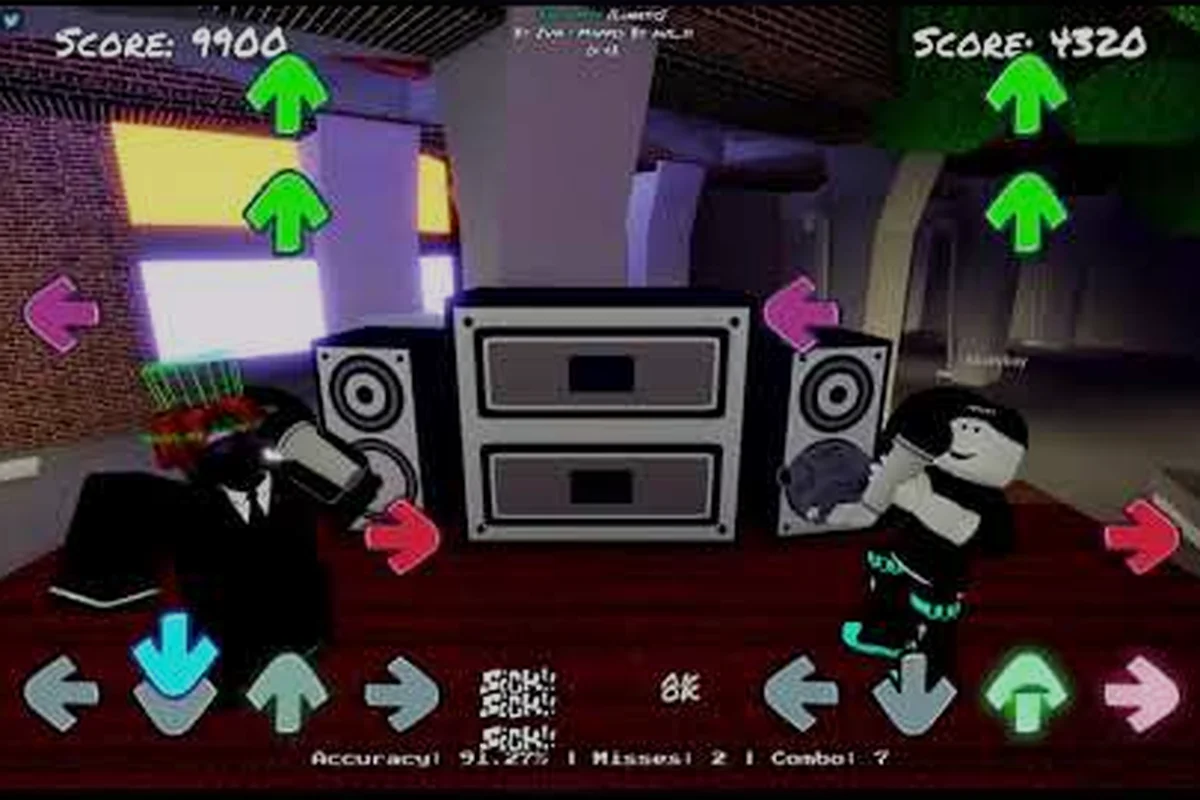
Funky Friday is a Roblox rhythm game built on top of Friday Night Funkin', and most new players lose their first few songs not because of reading speed but because their controls are still on the default layout. The Funky Friday keybinds you pick on day one shape every chart you play afterward, because arrow skins, scroll speed, and key position all feed off that base setup. This Funky Friday guide walks you through the default controls, where to find the settings menu, and how console and mobile players can remap the layout without breaking their timing.
According to its official Roblox game page, Funky Friday is a rhythm-based fighting game inspired by the Friday Night Funkin' series, where players engage in rap battles by hitting arrow notes in time with the music.
Understanding Funky Friday's Default Controls
The Funky Friday game throws four receptor arrows at the top of the screen, and a stream of matching notes scrolls up toward them. Your job is to press the right key the moment a note overlaps the receptor — simple in theory, but the default layout determines how natural that press feels. Funky Friday controls ship in three flavors: keyboard arrow keys for PC, face-button layouts for console players, and a touch overlay for mobile users on Roblox.
Default PC Keybinds
Most players start on keyboard because the Funky Friday Roblox experience is fastest to read on a horizontal number pad. The four default keys are the arrow cluster on the right side of most keyboards, which mirrors the receptor layout visually and keeps the muscle memory consistent with the screen.
| Key | Receptor | Position |
|---|---|---|
| Left Arrow | Left note | Pink |
| Down Arrow | Down note | Blue |
| Up Arrow | Up note | Green |
| Right Arrow | Right note | Red |
PC players who prefer the WASD cluster can swap the Funky Friday keybinds to that layout in seconds. Open the in-game menu by pressing Esc on keyboard, then look for the Settings panel on the right edge of the screen. Inside Settings you will find a Controls tab that lists the four receptors with drop-downs next to each. Click a drop-down, press the new key, and the binding saves automatically — no restart required. Players who migrate from other rhythm games like OSU often remap to Z, X, , and . for closer thumb reach, which community guides on the r/funkyfridayroblox subreddit consistently call out as a comfort upgrade.
Default Console Controls
Console players see a different mapping by default because D-Pad and face buttons don't share a clean left-right-up-down geometry. Lyte Interactive ships two layouts so players can pick whichever feels more natural, and both are editable from the same Controls tab on console.
| Input Style | Left | Down | Up | Right |
|---|---|---|---|---|
| D-Pad | D-Pad Left | D-Pad Down | D-Pad Up | D-Pad Right |
| XYBA | X (bottom) | Y (left) | B (right) | A (top) |
D-Pad works well for players who hold the controller with two hands, while XYBA keeps the thumb closer to the analog stick for faster transitions between notes. If you find your accuracy dropping on fast charts, switching between these two layouts is the fastest Funky Friday controls fix you can make without changing anything else.
Default Mobile Controls
Mobile players don't get a physical key at all — they tap directly on the four receptor arrows that appear on the touch overlay. The overlay is always on, with one tap zone per arrow, and the receptors are large enough to hit cleanly with a thumb on a standard phone. You can drag the overlay up or down the screen from Settings > Controls > Touch Layout to match how you hold your phone, and there is a left-handed flip option for players whose dominant thumb covers the right-side receptors.
Accessing the Funky Friday Settings Menu
The Funky Friday settings menu is where every keybind, scroll speed, and arrow skin lives, so knowing exactly where to find it saves you from digging through menus mid-song. The first time you launch Funky Friday, the menu opens on the city hub and the settings cog is tucked in the top-right corner of the screen. Once inside a song, pressing Esc on PC or the Start button on console brings up the in-song overlay, where Settings is one tab to the right of the pause button.
Where to Find Arrow Skins
Arrow skins are how Funky Friday players personalize the four receptors, and the skin selection lives under Settings > Cosmetics > Arrows. The base game ships with the default skin that matches the receptor colors above, plus a handful of cosmetics you unlock by completing weekly events. Skins only change the visual look of the receptor — they do not alter the Funky Friday controls, the hit window, or the scoring math — so swapping a skin never breaks a full-combo run you already had on the default look.
Where to Find Note Skins
Note skins are separate from arrow skins and live one tab over under Settings > Cosmetics > Notes. Note skins change the incoming note color and shape, which matters more for readability than arrow skins because the note is what your eye tracks during play. Community testing on the r/funkyfridayroblox subreddit recommends keeping the default note skin until you can full-combo a song on Easy, then experimenting with high-contrast skins once you know which arrow colors you tend to miss.
Customizing Funky Friday Keybinds
Customizing the Funky Friday keybinds is where most players see their first big accuracy jump, because the default arrow cluster doesn't fit every hand size or grip. The rebinding system supports any single key, including letter keys, number row, function keys, and even modifier combinations if you want to free up your thumb zone.
Step-by-Step: How to Change Keybinds
-
Open Settings from the main hub or in-song menu.
-
Click the Controls tab on the left sidebar.
-
Locate the four receptor rows labeled Left, Down, Up, Right.
-
Click the drop-down next to the receptor you want to remap.
-
Press the new key on your keyboard — the binding saves instantly.
-
Repeat for any other receptor you want to move.
-
Test the new layout on a low-difficulty song before jumping back into ranked matches.
Recommended Keybind Layouts for Different Playstyles
| Playstyle | Left | Down | Up | Right | Why It Works |
|---|---|---|---|---|---|
| Default | Left Arrow | Down Arrow | Up Arrow | Right Arrow | Matches receptor geometry on-screen |
| WASD | A | S | W | D | Closer thumb reach for FPS-trained hands |
| ZXCV | Z | X | C | V | Keeps left hand on home row, free mouse movement |
| DFJK | D | F | J | K | Curved reach, popular among OSU converts |
Players on the r/funkyfridayroblox subreddit also report success with split layouts, where the left two receptors use one row of keys and the right two use a different row, because the curve of the hand matches the curve of the receptor arc. If you want a deeper walkthrough of the rebinding system plus troubleshooting for bindings that won't save, the how to win guide covers the same Controls tab in more depth.
Console vs Mobile Controls in Practice
Console and mobile players share the same song library and the same scoring math as PC players, but the input method changes the timing window feel. On console, the D-Pad has a slightly slower actuation than face buttons, which means D-Pad players often score lower on tight windows until they adjust their timing. On mobile, touch input registers almost instantly, but finger drift can cause missed taps if your thumb slides off the receptor during long streams.
Tips for Console Players
-
Pick one layout and commit — switching between D-Pad and XYBA mid-session splits your muscle memory and tanks accuracy.
-
Lower scroll speed in Settings > Gameplay if you can't read incoming notes clearly, because the controller thumb has less reach than a keyboard key.
-
Use a wired controller if you notice input lag, since Bluetooth compression on some consoles adds a 1-2 frame delay that breaks full-combo runs.
If you want a full walkthrough of the console settings tab plus how to remap face buttons on Xbox vs PlayStation, the Funky Friday walkthrough breaks down each console-specific step.
Tips for Mobile Players
-
Adjust overlay height in Settings > Controls > Touch Layout so your thumb sits naturally over the receptors without stretching.
-
Use the left-handed flip if your right thumb keeps covering the right-side arrows, because that one swap often fixes a 5-10% accuracy gap.
-
Lower the chart difficulty by one tier when switching from PC to mobile, because touch timing has a slightly wider variance than key presses.
Optimizing Your Funky Friday Gameplay Settings
Keybinds only tell half the story — the other half lives in scroll speed, note speed, and hit window settings that determine how forgiving the timing check is. The Funky Friday game lets you tune these values per song, and small adjustments here often matter more than a keybind swap for newer players. For a full picture of how these gameplay settings interact with chart difficulty, the 2026 getting started guide maps out the recommended values for each difficulty tier.
Scroll and Speed Settings That Matter
Scroll speed controls how fast notes travel from the bottom of the screen to the receptor, and note speed controls the gap between notes in a stream. Lower scroll speed gives your eyes more time to read patterns, while lower note speed spaces out dense streams so your fingers have more recovery time. Most community guides recommend starting at a scroll speed of 1.0x and a note speed of 1.0x, then nudging scroll speed up by 0.1 increments each week as your reading improves.
Hit Window Settings
Hit window is the timing margin the game uses to count a note as Perfect, Great, or Good, and the default window rewards accuracy over leniency. Players chasing high accuracy scores should leave the hit window on Strict, while players still learning patterns can flip it to Loose for a wider margin during practice runs. The window setting doesn't affect the Funky Friday controls themselves — it only changes the scoring band a press lands in.
| Setting | Effect | Best For |
|---|---|---|
| Strict Hit Window | Narrow margin, rewards precise timing | Accuracy-focused players |
| Default Hit Window | Balanced margin | Most players after 2-3 weeks |
| Loose Hit Window | Wide margin, forgiving timing | New players still learning patterns |
Frequently Asked Questions
What are the default Funky Friday keybinds on PC?
The default Funky Friday keybinds on PC are the four arrow keys: Left Arrow, Down Arrow, Up Arrow, and Right Arrow, which match the receptor geometry on-screen. You can swap any of them to WASD, ZXC, or any other single key from Settings > Controls in the main hub or in-song menu.
How do I change my Funky Friday keybinds?
Open the Settings menu from the top-right cog in the hub, or press Esc mid-song, then click the Controls tab on the left sidebar. Click the drop-down next to the receptor you want to remap, press the new key, and the binding saves instantly. You don't need to restart the song or leave the match.
Where do I find arrow skins in Funky Friday?
Arrow skins are located under Settings > Cosmetics > Arrows, one tab to the right of the main controls panel. Skins only change the visual look of the receptor and do not affect the Funky Friday controls or the scoring math, so you can swap them without breaking your accuracy on existing runs.
Do console and mobile players have the same controls as PC?
Console players can pick between D-Pad and XYBA layouts from the same Controls tab PC players use, while mobile players tap directly on the touch overlay instead of pressing physical keys. All three input methods share the same hit window, scoring bands, and song library, so your skill transfers between platforms.
Can I play Funky Friday on a laptop trackpad?
Yes, the Funky Friday game supports any single-key press including trackpad taps if your laptop maps them to key inputs, but the timing is less consistent than a mechanical keyboard. For the best accuracy, plug in a USB keyboard or rebind to keys that sit closer to your thumb zone like DFJK before playing ranked charts.